
Game Controls
- Mouse: Navigate menus, choose scenes and content packs, and interact with recording options.
- Microphone: Record impressions, dialogue, and voiceovers.
- On-Screen Controls: Play reference audio, start or stop recording, replay takes, and retry lines when needed.
















Choicer Voicer
Introduction to Choicer Voicer
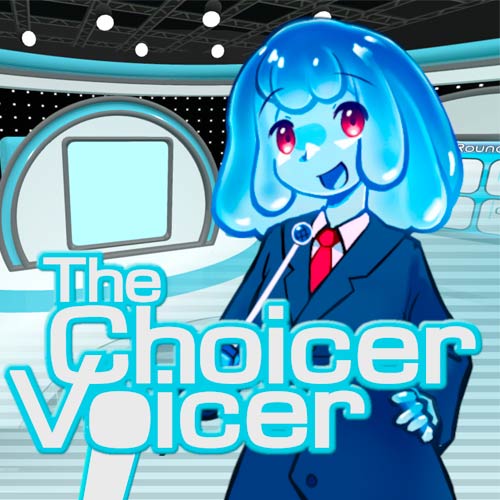
Choicer Voicer is a casual voice-impression and dubbing party game where your microphone becomes the main way to play. Listen to prepared dialogue or reference audio, perform the lines yourself, then replay your recording to see how the take turned out. Ready-made Dub Packs provide scenes with dialogue and timing already set up, while custom content opens the door to different voices, characters, memes, quotes, and studio themes. Whether you're trying to nail an impression or deliberately make your friends laugh, the fun comes from putting your own voice into the performance.
Key Features of Choicer Voice
- Voice-Based Gameplay: Use your microphone to record vocal impressions and dubbed dialogue.
- Dub Mode: Perform voiceovers for prepared scenes and listen back to your takes.
- Custom Content Packs: Add voice packs, judges, studios, hosts, contestants, and other content.
- Game Show Format: Perform in front of computer judges that vote on vocal impressions.
- Local Party Play: The original game supports sessions for up to four local players.
- Creative Customization: Change the look and content of the show or build your own voice packs.
Gameplay Guide for Choicer Voicer
Choicer Voicer focuses on listening, recording, and vocal performance. Choose a voice or Dub Pack, listen closely to the reference audio, and use your microphone to recreate each line with the right delivery and timing.
Listen, Record, and Dub the Scene
Each scene comes with prepared dialogue and timing to follow. Record the lines one by one, replay your takes, and retry anything that doesn't sound right before reviewing the complete scene. Beyond dubbing, The Choicer Voicer includes vocal-impression formats with computer judges that vote on performances. Custom content packs can also introduce different voices, studios, hosts, judges, and contestants, adding more variety to each session.
Game Controls
- Mouse: Navigate menus, choose scenes and content packs, and interact with recording options.
- Microphone: Record impressions, dialogue, and voiceovers.
- On-Screen Controls: Play reference audio, start or stop recording, replay takes, and retry lines when needed.
A working microphone is essential for the voice-recording gameplay, so check your audio input before starting.
Tips for Better Voice Impressions and Dubs
- Listen Before Recording: Pay attention to the original line's timing, pace, and delivery.
- Match the Timing: Try to keep your speech aligned with the scene rather than rushing through the dialogue.
- Replay Your Takes: Listening back makes awkward timing or unclear delivery easier to notice.
- Retry Difficult Lines: Record another take when a line doesn't fit the scene the way you want.
- Experiment With Voice Packs: Different characters, quotes, and scenes can make each performance feel completely different.
Put your voice in the spotlight with Choicer Voicer - listen closely, record your best impression, and see how well you can bring each line and scene to life.